TeamViewer QuickSupport
Ever found yourself in a situation where you needed help fixing something on your device but couldn’t explain it over the phone? We’ve all been there! That’s where TeamViewer QuickSupport comes in clutch. Let me walk you through why this app should be your go-to for remote device support.
Getting Started with Ease
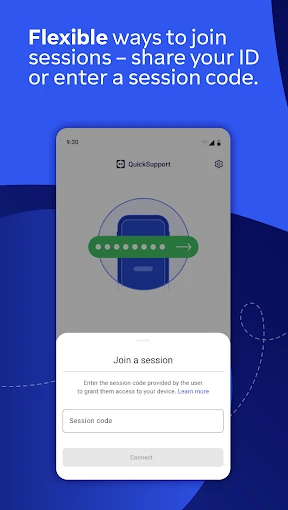
Installing TeamViewer QuickSupport is a breeze. All you need to do is download it from the app store, and you’re halfway there. It’s available on both Android and iOS, so you’re covered regardless of what device you’re using. Once installed, the app provides you with a unique ID that you can share with your tech-savvy friend or IT support. This ID is your golden ticket for them to access your device remotely, making troubleshooting as simple as pie.
Features that Stand Out
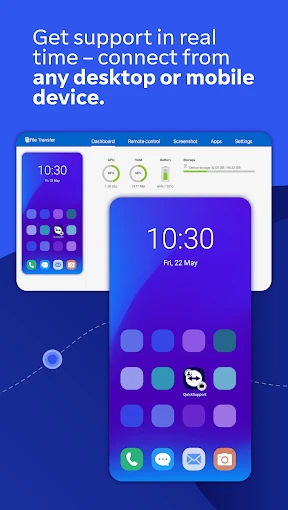
One of the coolest things about this app is its real-time screen sharing capability. Imagine your friend or IT support seeing exactly what’s happening on your screen as if they were right there beside you. This feature is particularly handy for those moments when you’re dealing with something too tricky to describe over a call or text. It’s like having a personal tech support assistant!
Another feature that deserves a shoutout is its easy file transfer option. Need to send a document or receive one while getting help? No problem. The app lets you transfer files seamlessly during the session, saving you from the hassle of using third-party apps or emails.
Security You Can Trust
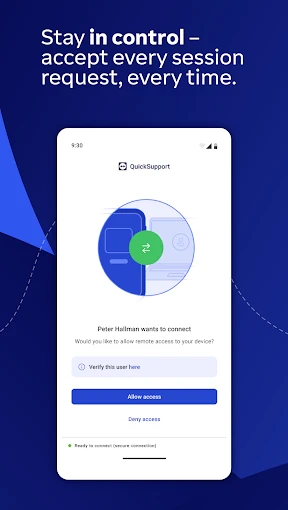
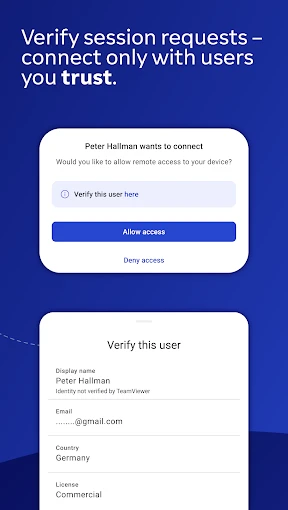
Now, I know what you’re thinking – giving someone remote access to your device sounds risky, right? But fret not! TeamViewer QuickSupport ensures top-notch security with end-to-end encryption. Plus, you have full control over who accesses your device and for how long. You can terminate the session anytime you want, ensuring your privacy is never compromised.
A Handy Tool for Everyone
Whether you’re a tech newbie or a seasoned pro, this app is designed to cater to all. It’s intuitive, user-friendly, and doesn’t require any technical know-how to operate. Perfect for those who might find themselves in a pickle with tech issues more often than they’d like to admit.
In a world where digital mishaps are just a click away, having TeamViewer QuickSupport on your device is like having a safety net. It’s efficient, reliable, and most importantly, it makes remote support a whole lot easier. So, next time you find yourself struggling with a tech issue, remember this app. It just might save the day!

- Developer
- TeamViewer
- Version
- 15.63.669
- Installs
- 50,000,000+
- Android Version
- 5.1
- Content Rating
- Everyone
- Price
- Free
- Easy to set up and use
- Supports a wide range of devices
- Highly secure connections
- Lightweight and fast
- Excellent customer support
- Requires stable internet connection
- Limited features in free version
- Can be complex for non-tech users
- Occasional lag in remote sessions
- Requires permission for each session