

Google Tasks
Have you ever found yourself juggling between tasks, trying to keep track of what needs to be done, and wishing for an organized way to manage your to-do list? Well, Google Tasks might just be the solution you've been looking for. As someone who constantly needs to keep their day in check, I decided to give Google Tasks a spin and see if it lives up to the hype.
Getting Started with Google Tasks
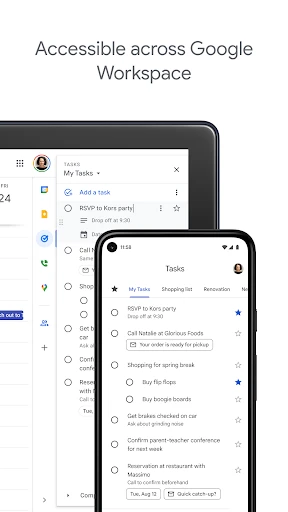
First things first, Google Tasks is super easy to get started with. If you've got a Google account, you're already halfway there. Just download the app from the Play Store or App Store, sign in, and you're good to go. It's integrated seamlessly with other Google services like Gmail and Calendar, which is a massive plus if you're already embedded in the Google ecosystem like me.
Interface and Usability
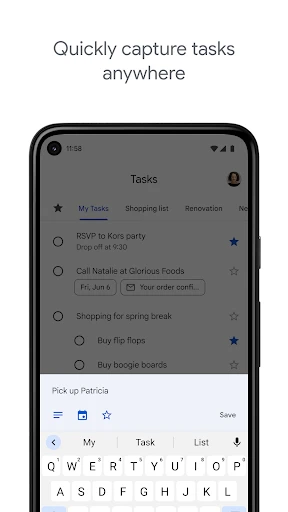
One of the things that struck me right away was the simplicity of the interface. Google Tasks is not cluttered with unnecessary features, which makes it incredibly straightforward to use. The main screen gives you a clear view of all your tasks, and adding a new task is as simple as hitting a button. You can create multiple lists to categorize your tasks, and rearranging them is just a drag-and-drop away.
Another cool feature is the ability to add details to each task. You can set due dates, add subtasks, and even leave notes to yourself. This really helps in breaking down big projects into manageable chunks, making it less daunting to tackle large to-dos.
Integration with Google Services
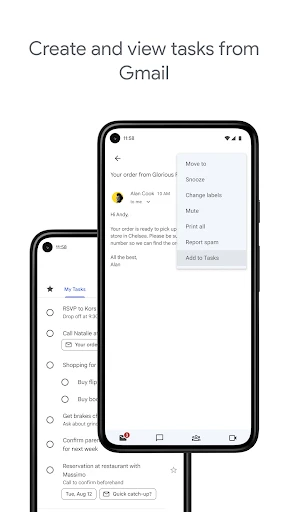
Now, this is where Google Tasks really shines. Its integration with other Google services is seamless. For instance, if you receive an email that requires follow-up, you can directly add it to your tasks from Gmail. Similarly, any task with a deadline syncs up with Google Calendar, giving you a visual representation of your schedule. This interconnectedness is a lifesaver for someone like me who tends to forget things easily.
Room for Improvement
However, no app is perfect, and Google Tasks does have some areas where it could improve. For instance, while the app does allow for task reminders, the customization options are quite limited. I'd love to have more control over how and when these reminders pop up. Additionally, a collaborative feature would be a fantastic addition, allowing users to share lists and tasks with others, making it ideal for group projects or family chores.
Another minor gripe is the lack of a desktop app. Yes, you can access Google Tasks via a web browser, but a dedicated desktop app would provide a more cohesive experience, especially for those who spend a lot of time on their computers.
Final Thoughts
Overall, Google Tasks is a fantastic tool for anyone looking to streamline their task management process. It's perfect for those who want a no-fuss, easy-to-use app that integrates well with Google’s suite of services. While it has its limitations, the benefits outweigh the drawbacks, making it a worthy addition to your productivity toolkit.


- Developer
- Google LLC
- Version
- 2025.05.12.757528272.0-release
- Installs
- 10,000,000+
- Android Version
- 6.0
- Content Rating
- Everyone
- Price
- Free
- Seamless integration with Google services.
- User-friendly interface for easy task management.
- Cross-platform availability on Android and iOS.
- Supports voice input for task creation.
- Offers customizable notifications.
- Lacks advanced project management features.
- No offline mode for task access.
- Limited collaboration tools.
- Cannot attach files to tasks.
- Basic design with few customization options.


