Link to Windows
Connecting Your Android Phone to Windows: A Seamless Experience
If you’ve ever wished for a smoother way to integrate your Android device with your Windows PC, you’re in luck. Link to Windows is here to bridge that gap, offering a seamless experience that makes juggling between devices a breeze. Let's dive into what makes this app a game-changer for Android and Windows users alike.
Setting Up: A Walk in the Park
First things first, setting up Link to Windows is as straightforward as it gets. All you need is a compatible Android device and a Windows 10 or later PC. Simply download the app from the Google Play Store, sign in with your Microsoft account, and you’re good to go. The app guides you through linking your devices with clear, step-by-step instructions, making the whole process surprisingly hassle-free.
Features That Stand Out
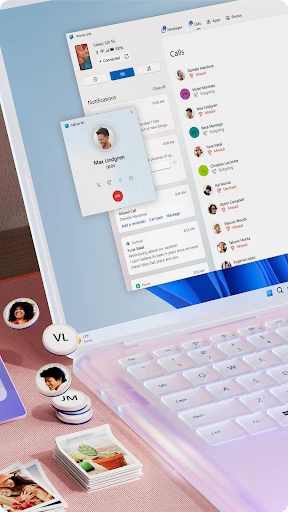
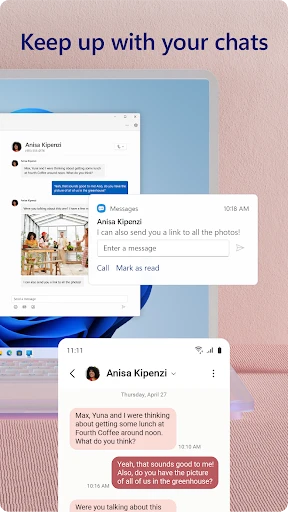
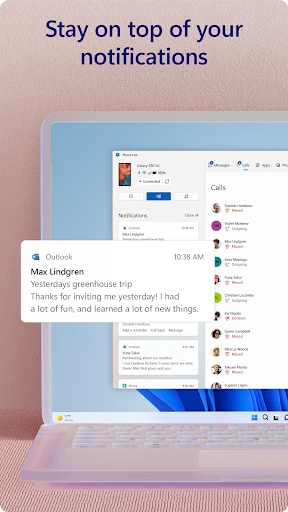
Once you’re all set up, you’ll find a suite of features designed to enhance your productivity and connectivity. The app lets you access your phone’s notifications, messages, and photos directly from your PC. This means you can respond to texts, view recent photos, and even use your favorite mobile apps without picking up your phone. How cool is that?
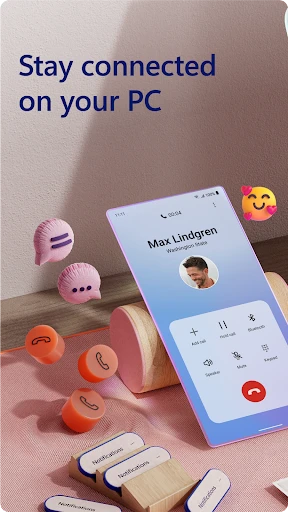
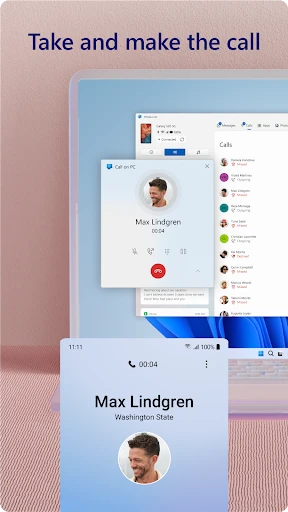
One feature I absolutely love is the ability to make and receive calls directly from the PC. It’s incredibly convenient, especially when you’re in the middle of work and don’t want to be distracted by your phone ringing on the other side of the room. Plus, the call quality is pretty solid, so no complaints there.
Performance and Usability
In terms of performance, Link to Windows runs smoothly without any noticeable lag. The connection between the phone and PC is stable, which is crucial for an app like this. The user interface is clean and intuitive, making it easy to navigate through different features without feeling overwhelmed. Whether you’re tech-savvy or a complete newbie, getting the hang of this app won’t take long.
Room for Improvement
While Link to Windows is pretty impressive, there’s always room for improvement. For one, the app could benefit from more customization options to allow users to tailor their experience to better suit their needs. Also, while most Android devices are supported, it would be great to see broader compatibility with older models.
Final Thoughts
Overall, Link to Windows is a fantastic tool for anyone looking to enhance the synergy between their Android phone and Windows PC. It’s user-friendly, efficient, and a real time-saver. Whether you’re replying to messages, managing notifications, or simply accessing your photos, this app makes multitasking a whole lot easier. If you haven’t tried it yet, I’d highly recommend giving it a shot. You might just wonder how you ever lived without it!
- Developer
- Microsoft Corporation
- Version
- 1.25041.133.0
- Installs
- 1,000,000,000+
- Android Version
- 8.0
- Content Rating
- Everyone
- Price
- Free
- Seamless integration with Windows PCs
- Allows message and call syncing
- Easy file transfer between devices
- Supports multiple Android apps
- Improves productivity with multitasking
- Limited iOS compatibility
- Requires stable internet connection
- Can drain battery quickly
- Occasional connectivity issues
- Needs Windows 10 or higher